ServiceTitan Add-On Training
June 17, 2026For Client Success Managers and Strategic Account Managers
| Audience | Client Success Managers and Strategic Account Managers |
| Purpose | Enable, configure, and validate the ServiceTitan premium add-on for an individual ClientTether account/location. |
| Security | Never document, email, or screenshot live ServiceTitan secrets or keys. Use placeholders or masked values. |
| Primary workflow | Enable the add-on in ClientTether, connect the matching ServiceTitan app, paste values into ClientTether, save, and test before moving to the next account. |
1. What the ServiceTitan add-on does
The ServiceTitan premium add-on enables ClientTether accounts to share contact, opportunity, and job information with ServiceTitan. It is a standalone add-on and is intended to be configured per location/account when a customer needs the ClientTether-to-ServiceTitan workflow.
- ClientTether can push Customer, Location, and Job records to ServiceTitan.
- Users can send data manually from the Contact Profile, and admins can include ServiceTitan send actions in Action Plans when the add-on is available.
- After a successful push, ClientTether stores ServiceTitan record IDs and the manual send control should no longer allow duplicate manual sends for that record.
- The add-on is separate from existing Dispatch and ServiceBridge integrations.
2. Roles, prerequisites, and access
- ClientTether: The add-on and ServiceTitan settings tab are intended for Level 3+ users/admins. CSM/SAM team members should impersonate or log into the correct account/location using approved internal procedures.
- ServiceTitan: You need access to the customer/location-specific ServiceTitan tenant and the ability to open Settings > Integrations > API Application Access and connect the ClientTether app.
- Use one browser tab for ClientTether and one browser tab for ServiceTitan so you can copy values directly without storing them elsewhere.
- Confirm which account/location you are configuring before copying values. Most values differ by location.
Security requirement: Do not place live ST Client Secrets, Client IDs, tenant values, business unit values, or app keys in enablement docs, tickets, Slack, email, or screenshots. Use placeholders such as
xxxxxxxx-xxxx-xxxx-xxxx-xxxxxxxxxxxx or masked values such as ********.3. Visual reference — sanitized example only
Use the visual below to orient yourself. It is a mock training image and intentionally contains no real customer secrets, keys, tenant IDs, or business unit values.
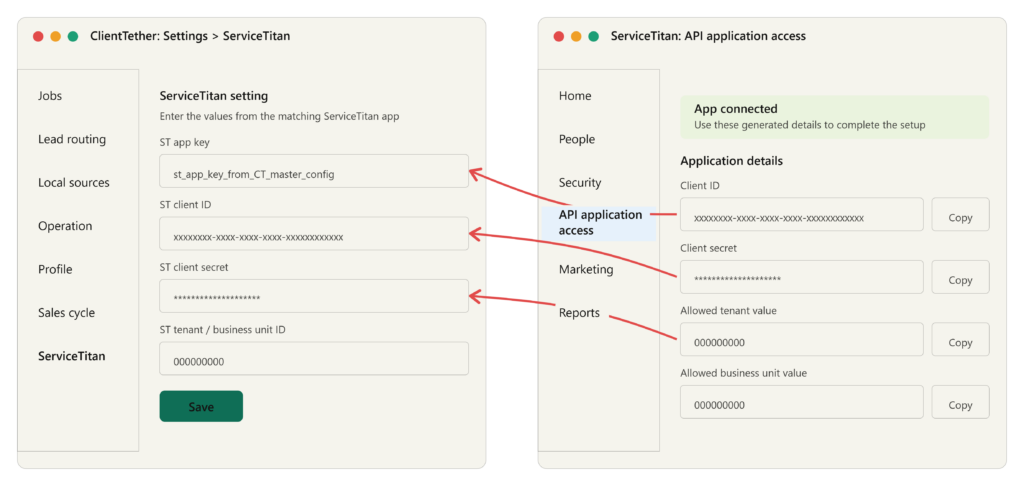
Figure 1. Sanitized example of the ClientTether ServiceTitan settings screen next to ServiceTitan API Application Access.
The arrows show which ServiceTitan values populate the ClientTether settings fields.
The arrows show which ServiceTitan values populate the ClientTether settings fields.
Phase A — Enable the ServiceTitan Integration add-on
- In ClientTether, open the top menu and go to Accounts.
- Select the target location/account and click Login. Confirm you are in the correct location before continuing.
- Open the user menu in the top navigation: Hello [Name] > Settings.
- Scroll to Add-Ons, open the Premium tab, and click ServiceTitan Integration.
- After activation, confirm ServiceTitan appears as a settings section/tab in the settings navigation.
- Do not move on until the ServiceTitan settings section is visible for the account/location you are configuring.
Phase B — Bridge ServiceTitan and ClientTether
- In ClientTether, stay inside the same location/account and open Settings > ServiceTitan.
- In a second browser tab, open the matching ServiceTitan tenant/location.
- In ServiceTitan, click the gear icon, open Integrations, then API Application Access.
- Connect a new app and select ClientTether. Open the ClientTether integration details once the app is connected.
- Copy the ServiceTitan application values into the corresponding ClientTether ServiceTitan settings fields. Use direct copy/paste only; do not store the values in notes or screenshots.
- Click Save in ClientTether.
- Validate before configuring the next location. A successful test should result in the expected contact/customer/job information appearing in ServiceTitan and the ClientTether record retaining the returned ServiceTitan IDs.
Field mapping cheat sheet
| ClientTether field | ServiceTitan source | Expected value pattern | Notes |
|---|---|---|---|
| ST App Key | ClientTether-provided app key / master config | Do not document live value | May be shared across configured accounts according to internal implementation guidance, but do not publish the actual key in training materials. |
| ST Client ID | ServiceTitan Application Details > Client ID | GUID-like value | Unique to the ServiceTitan app/tenant setup. Copy directly from ServiceTitan. |
| ST Client Secret | ServiceTitan Application Details > Client Secret | Masked/secret value | Treat as a secret. Do not screenshot or paste into documentation. |
| ST Tenant/Business Unit ID | ServiceTitan Application Details allowed tenant/business unit values | Numeric tenant/business unit value | Location-specific. Verify the customer/location before saving. |
7. Testing checklist before moving to the next account
- The ServiceTitan settings section is visible in the correct ClientTether account/location.
- The ServiceTitan app is connected in the correct ServiceTitan tenant/location.
- All required fields save successfully in ClientTether without validation errors.
- A test contact/opportunity/job push succeeds.
- The corresponding record appears in ServiceTitan.
- ClientTether stores the returned ServiceTitan IDs for linkage.
- The manual Send to ServiceTitan button state changes only after a confirmed successful push and does not allow duplicate sends for an already-synced record.
- History notes, Alter-n-Fade messages, or system notifications are checked if a send fails.
Troubleshooting guide
| Issue | Likely cause | What to do |
|---|---|---|
| ServiceTitan settings section is not visible | Add-on not enabled for that account or user lacks sufficient access | Return to Add-Ons > Premium and enable ServiceTitan Integration. Confirm Level 3+ access. |
| Save fails or settings validation fails | Missing or mismatched credentials/tenant values | Re-copy values from ServiceTitan Application Details into ClientTether. Confirm you are using the matching location/tenant. |
| Manual send fails | Incomplete mapping, invalid credentials, API issue, or required field missing | Read the visible error message, check History Notes, and confirm required fields before retrying. |
| Record does not appear in ServiceTitan | Wrong tenant/location or push failed before ST returned IDs | Verify ServiceTitan tenant, search in the correct location, then check ClientTether history/system messages. |
| Manual button is still enabled after a push | ServiceTitan IDs may not have been returned or stored | Do not send repeatedly. Check the record history and escalate with screenshots that mask any secrets. |
| Need help with an unclear account configuration | Customer/location setup is ambiguous | Pause and schedule a working session or escalate to Product/Engineering with sanitized evidence. |
9. Escalation notes for Product/Engineering
- Include the customer/account/location name, the ClientTether account ID if available, and whether the add-on is enabled.
- Describe the step that failed and the exact visible error message. Redact any credentials before sharing.
- Include sanitized screenshots only. Crop or blur any Client ID, Client Secret, tenant ID, business unit ID, app key, and customer-sensitive information.
- For functional defects, note whether the failure happened from an Action Plan send or a manual Contact Profile send.
Reminder: Never document, email, or screenshot live ServiceTitan secrets or keys. Use placeholders or masked values.