Forgot Username or Forgot Password
October 27, 2022From time to time we forget things. Follow this process.
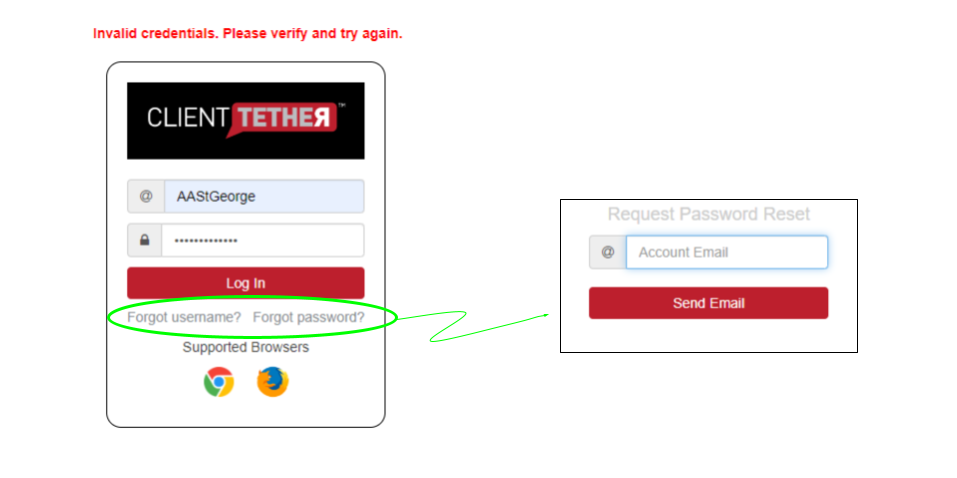
After you have put in your Account or User email address, the system will send you an email with a link to reset your password.
Phone Number Lookup: Verification of Text-Enabled VS Landline
October 20, 2022The system now has the ability to confirm if a number entered in the ‘Cell Phone’ field of a Contact Profile is text-enabled versus identified as a land-line or not text enabled.
This verification process is performed in the following instances: when a new Contact is added, when the number in the Cell Phone field is edited, and/or when the mobile phone icon to the right of the Cell Phone number is clicked. If the number is verified to be text-enabled, the ‘Ok to SMS?’ toggle will be set to active (on) and the corresponding Text tab will be available for use. If the number is determined to not be text-enabled/a landline number, the toggle will be set to in-active (off), the Text tab will not be accessible, and a statement in red will appear next to the toggle stating “Landline number, SMS not allowed.”
Archived History Notes
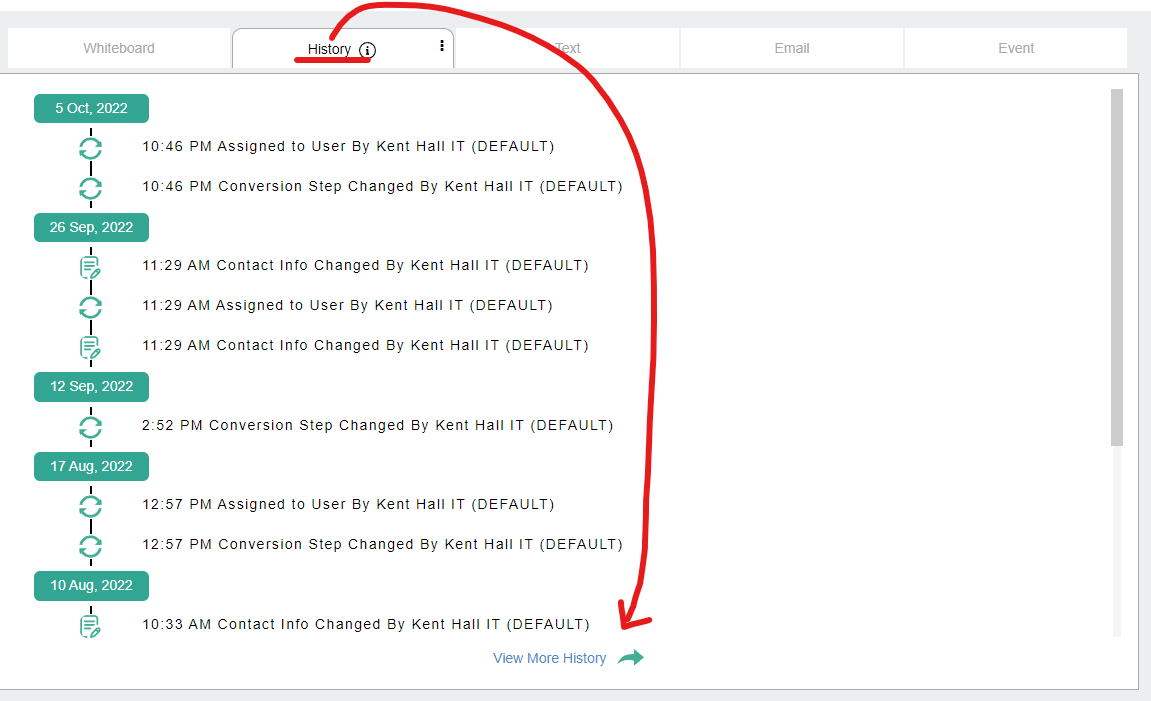
October 20, 2022The History tab in a Contact Profile displays a limited number of time-stamped activity notes for the Contact. Now available is an Archived list view of ALL history beyond the 100 record limit shown in the History tab. To access History beyond those 100 records, click the “View More History” link at the bottom right of the screen to launch an additional browser tab which will show a full list of all activity for that Contact collected within the CRM.
Emojis in Text Message
October 13, 2022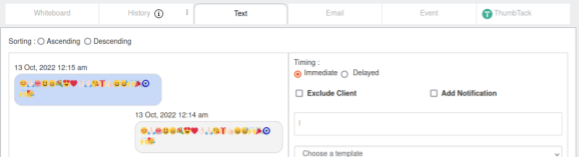
The CRM system can now receive emojis in a text from Contacts.
Contact Links within Contact Profile
October 13, 2022
There are now two options for collecting and sharing information about Contacts from the CRM:
Clicking the option at the top left (Contact Info) will copy a URL link back to this specific Contact profile that you can share with others. To access the the information about this Contact, the recipient of this information must have valid login credentials for the CRM. This URL is also available as a token.
Clicking the option at the right (#……) copies the Contact ID. This information is also available as a token.
Message Center
October 13, 2022
A unified Message Center concept has be added to the Add-On options, meaning that this feature must be turned on before it will be visible in the system. Once turned on, the “Message Center” option will show in the main menu.
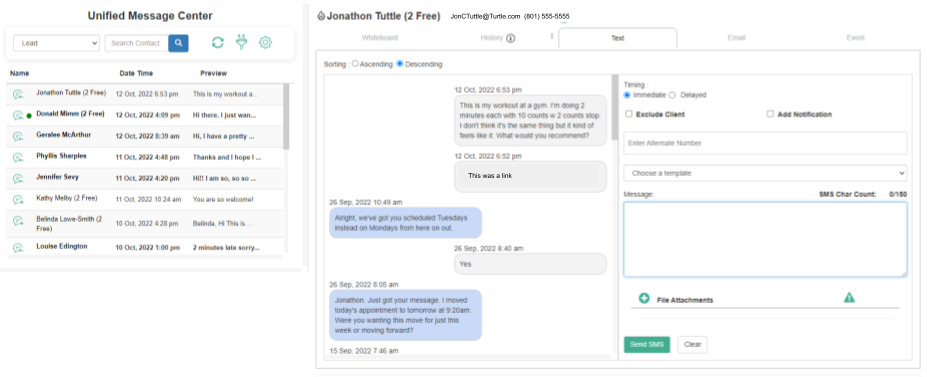
When the Message Center is opened it will show a list of messages on the left. If you click on one of the messages the details of that message will be shown on the right in its appropriate tab.
Messages in Bold have not been read.
The section on the right contains the same communication tabs as found in the full Contact Profile. You can read all messages to get caught up on any conversation with a Contact.
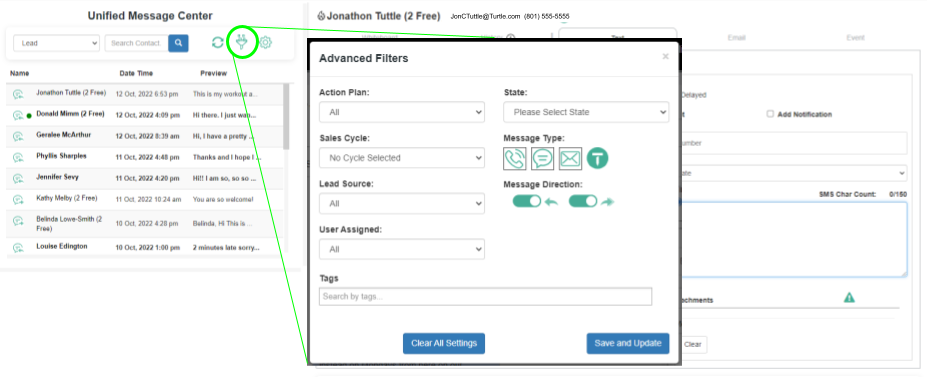
The Filter Icon lets the User control which messages they would like to focus on. If you have been using the software for a while now, you will already be familiar with most of the options. The new features in this filter are Message Type [Phone, Text, Email, Thumbtack] and Message Direction [Incoming, Outgoing]. In the image above, the User has selected to see Phone, Text and Email Messages in both incoming and outgoing directions.
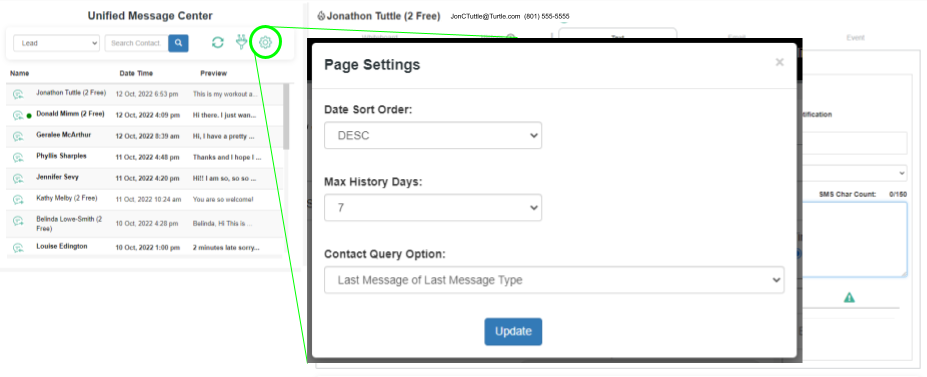
The Page Settings Icon allows the User to control 3 things:
Sort order: The options are DESC and ASC meaning Descending or Ascending sort order by date and time.
Max History Days: The options are 1 – 7 and controls the number of days to look back for messages.
Contact Query Options: the options here are “Last Message Type” or “Each Message Type” meaning, the query will return only the “Last Message Type” for a Contact or it will return the last of “Each Message Type” for a Contact.
View and Edit Opportunity Matrix
September 29, 2022While all Users can view the content of the Opportunity Matrix only Admin Users and Account Owners can edit info in the Opportunity Matrix.
Proposals: Email from Invoice Tab
September 28, 2022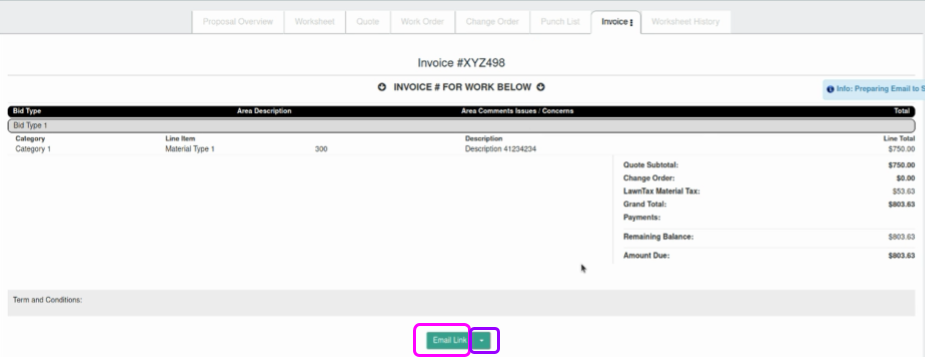
From the Invoice Tab in Proposals, you can send an email in one of two ways:
- Click on the Email Link and the system will open the full Contact Profile where you can verify/change the email address and then click on the Email Tab. Here you have the full power of our email tool including the selection of Templates. Choose a template and set all your other settings as desired before you click on the final Email button.
- Click on the dropdown portion of the email link to shorten the email process. This will show you the list of email templates. Simply make a selection and the proposal will be emailed strait away.
Share Hosted Pages
September 28, 2022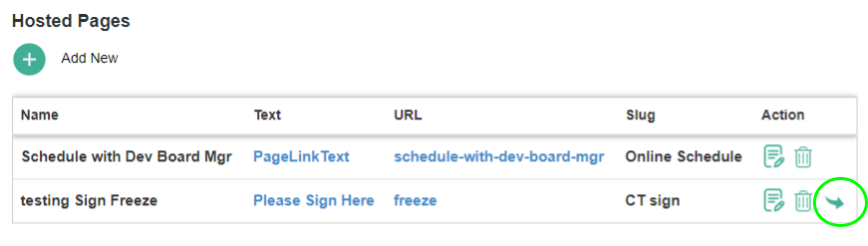
After you have create a Hosted Page, you can share that page with subaccount using the identified icon in the image just above. When shared, the receiving subaccount will NOT be able to edit the hosted page. All editing rights remain with the originating account.
Charts: Minutes and SMS Usage
September 21, 2022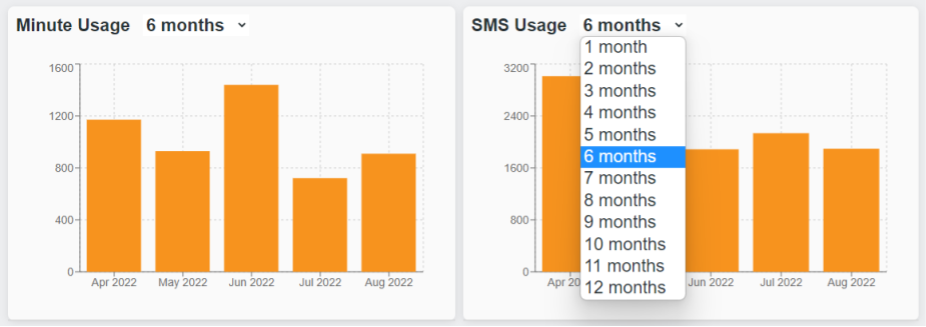
Two chart that will keep you in the know of your Minutes and SMS usage trends. You can choose between 1 and 12 months. Please understand that this chart shows is based on the the calendar month not the billing month.