Tokens in Calculations and Notes
September 21, 2022ClientTether Proposal system has built a very dynamic system that can use tokens to pass values around in the calculations.
Parse into Custom Fields
September 16, 2022Contact Records have a distinct list of fields. The system allows you to expand that list with Custom Fields. Custom fields consist of a Type, Label and Value.
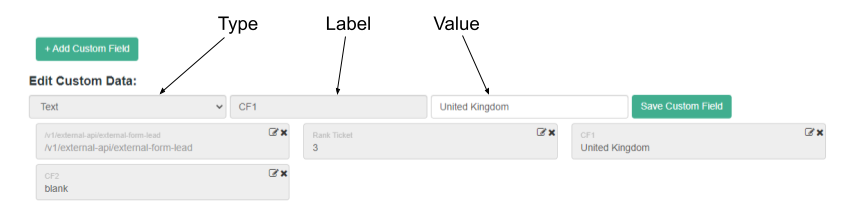
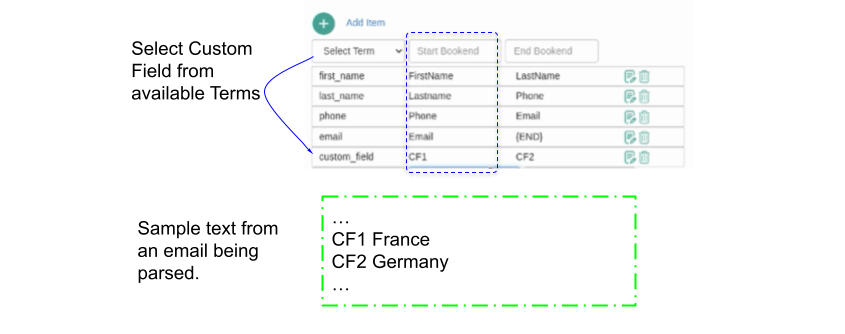
For parsing, content into a Custom Field use the Parser Term: Custom Field.
| Custom Field | This term allows you to collect info into Contact Custom Fields. Using the Start Bookend as the Label of the Custom Field and collecting the text value found up to but not including the End Bookend. |
Email Open Rate
September 13, 2022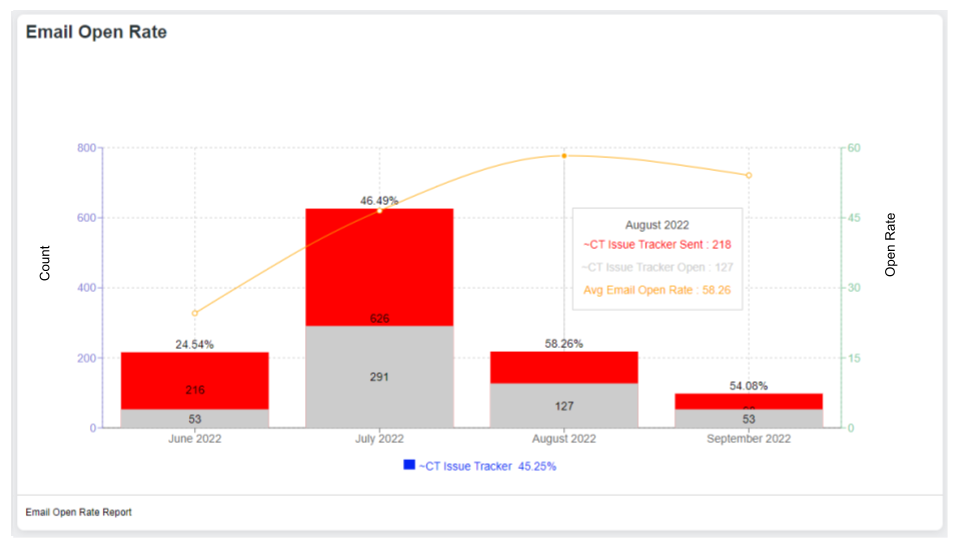
The Chart
An Email Open Rate Chart needs to show 4 things: a Date, Number Sent, Number Opened and the Percentage Opened. We have built all this in one chart. Study the image above.
The dates are shown across the bottom. These dates are sensitive to the date range you set on the Dashboard.
The number sent and opened are measured on the Left Vertical axis.
The open rate is measured against the Right Vertical Axis.
At the bottom center is the total average open rate as calculated for the whole date range.
The Data
Please understand – email open rate is not 100% accurate. However, Email Open Rates provide a good measure of contact engagement over time. The raw data making up the table is provided in the lower left for download. The data is segmented in various ways for self analysis through pivot tables.
Improving Open Rate
Improving email open rate is both a Science and an Art. Much has been written on the subject and is available for you by researching it on the internet. Here are a couple of options:
Verify your email against spam checkers
If you have concerns about your open rate, the first thing everyone should do is check your email against spam filters. One example would be Mailgenius. They will provide you with a temporary (one time use) email address where you can send an email for analysis. Their site will give you a score based on a bunch of factors. Using the titles of those factors you can continue to research each suggestion on the internet. After you have repaired all the suggestions with the email subject and body move on to Server Side improvements
Server Side Improvements
The first step would be to Authenticate our email server or use your own SMTP settings.
A second option for some accounts is having us build a custom email domain setup on our servers.
Check with your Customer Success Manager for more information.
Historical Minutes and Text Usage per Month
September 13, 2022
Historical Minutes and Text usage charts are available. You can ask for 1-12 months history and the system will show you the Chronological usage rates. Notes this does NOT synchronize with your billing cycle but it will show you a trend.
The actual number of months available are based on your start date or the feature date whichever is the shortest.
Capture External Emails in ClientTether
September 13, 2022There are two sides of capturing external emails inside of ClientTether.
Inside of the SMTP Settings tab you will find a system generated BCC email. This is your key to capturing external emails inside of ClientTether.
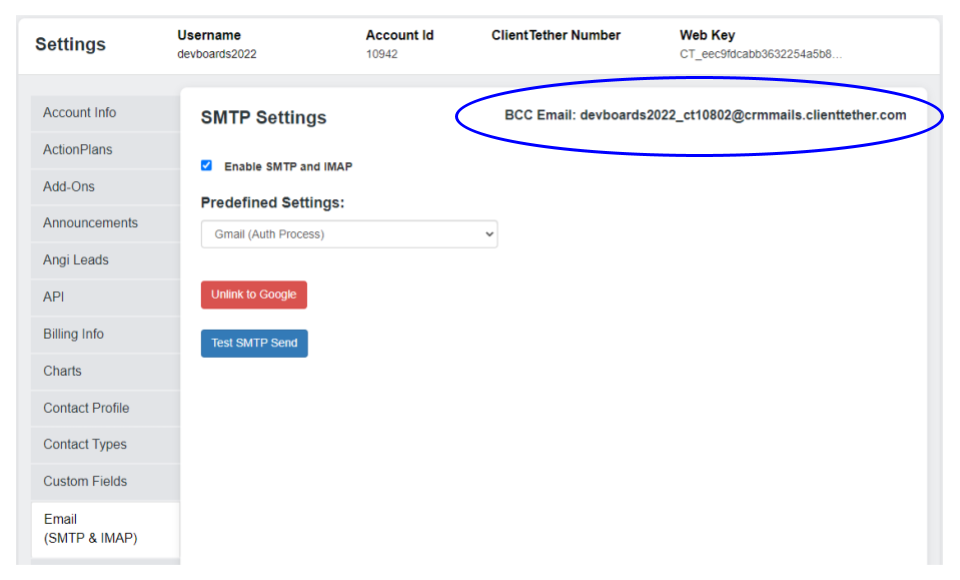
Capture Outgoing Emails
The first use case is when you are sending an email to a contact from your email system: Gmail, Outlook or etc. Put your system generated BCC Email in the BCC field before sending. In this case, the outgoing email is sent to your contact and to ClientTether’s email parsing system. ClientTether will read the message, find the original recipient’s email and compare that to Contact Emails in the system already. Supposing the system finds a match, the body of the outgoing email will be captured as an History Note.
Capture Incoming Emails
The second use case is capturing incoming emails in ClientTether. In this case, a little more setup may be required. The basic concept is that you will fwd the incoming email to our system generated BCC Email. This can be done one at at time if you want to be strategic. Or you can set up a Filtering Rule in your email tool to send lots of items. In either instance, ClientTether will read the message and find the original sender’s email. Our system will attempt to match the sender’s email with a Contact in your list. Supposing a match is found, the body of the email is captured as an History Note.
Please Note: Google will not Fwd email with a Rule without the receiving end agreeing to such an action. Hence, you will have to work with your CSM to respond to Google in acceptance of FWD emails.
July 18, 2022
September 7, 2022- Information Dots: Information Dots (
) are currently being added throughout the UI to provide additional details on features, settings, and options within the account. To review that information, click on the Info dot icon wherever found within the system.
- Dashboard Updates: Additional date range options have been added to select reports displayed on the Dashboard reporting menu. Refer to the Dashboard documentation in the User Manual for a detailed description of report options. Please Note: Some reports will only be displayed on the Dashboard if a corresponding feature or setting is enabled in the account (i.e. Proposal System).
- Action Plan Review Feature: When “locked” Action Plans are shared to Sub-accounts from the Enterprise level account, Sub-Account users will now be able to view the content of Action Plans via an added magnifying glass button (
). Please note that this option allows “view-mode” of the Plan only. Additionally, Sub-account users can now also click on each step of the Action Plan and open that step in “read-mode” only.
- Settings Menu Update: Files feature documentation has been added to the User Manual.
- File Sharing by Sub-Account Users: Sub-account Users can now share/send files using the “duplicate” tool found within the file menu.
- Signatures: To create a binding contract, as often required by many states, the Proposal system now features a Signature acknowledgement and signature box to both confirm and submit an e-signature on a Proposal. This Signature is then “locked” to this Proposal unless items are added or updated which then allows the field to be “unlocked” and a new Signature added based on the changes.
- Payment Schedule: A Payment Schedule is now shown at the bottom of the Proposal in both Quote View and Customer View to clearly show the Deposit amount, Progress amount and expected Final amount as applicable on Quotes created in the system. If entered, these values are also “locked” with the Signature (see notes above). If the signature “seal” is broken by editing or updating the Worksheet, the Payment Schedule can also be updated. Otherwise, these fields are held constant to the original signature on the Quote.
June 10, 2022
September 7, 2022- UI updates for Responsive Mobile Views: the Account and Action Plan Page have been updated to be more responsive to viewing on a mobile device.
- Chart Updates: Two charts were updated with additional formatting options: Salesperson Statistics and Sales Cycle Progression chart. Each chart now has three options. Depending on which chart format you prefer, you can now set it as the default display on the Charts Tab in Settings.
May 5, 2022
September 7, 2022- Proposal System Update: The Proposal System has been updated to include the auto-save feature throughout. This change is now in effect whenever changes are made on any screen within the Proposal System. Additionally, when changes are made to any screen within the Proposal System, calculations are also updated and auto-saved.
- Proposal System Update: The Proposal System Line Item feature has been updated where a Line Item is selected to be deleted, a dialogue box will now appear and you must click “OK” to continue. Once deleted, you can view the Line Item in the Archives Tab in Proposal Settings. From that menu you can restore it for use if needed by clicking on the green arrow. Also note that when a Line Item is deleted and archived it will still show in Proposals where it was previously used.
- Angi Ads Integration: As simple as it seems, Angi Ads is different from Angi Leads. The system not includes an Add-On process to accept leads with a custom integration for each.
April 28, 2022
September 7, 2022Updates to Existing Features/Settings:
- Integrations Update: QBO Integration update brings the Product matching selection inside of the system instead of being in the Bridge. We also allow custom field mapping from inside our system as an option. This is more scalable and editable.
- Tokens Feature Update: New Tokens have been added to assist in sending data out of the system by Webhooks. These new Tokens include, Account Web-Key, User ID, and External IDs
- Integrations Update: The Webhook Monitor located at Hello–>Settings will now track attempts as sending data via webhooks.
- Proposal System Update: Proposal Number Prefix is now allowed for branding and segmenting proposals in QBO from different accounts.
April 21, 2022
September 7, 2022New Features/Settings:
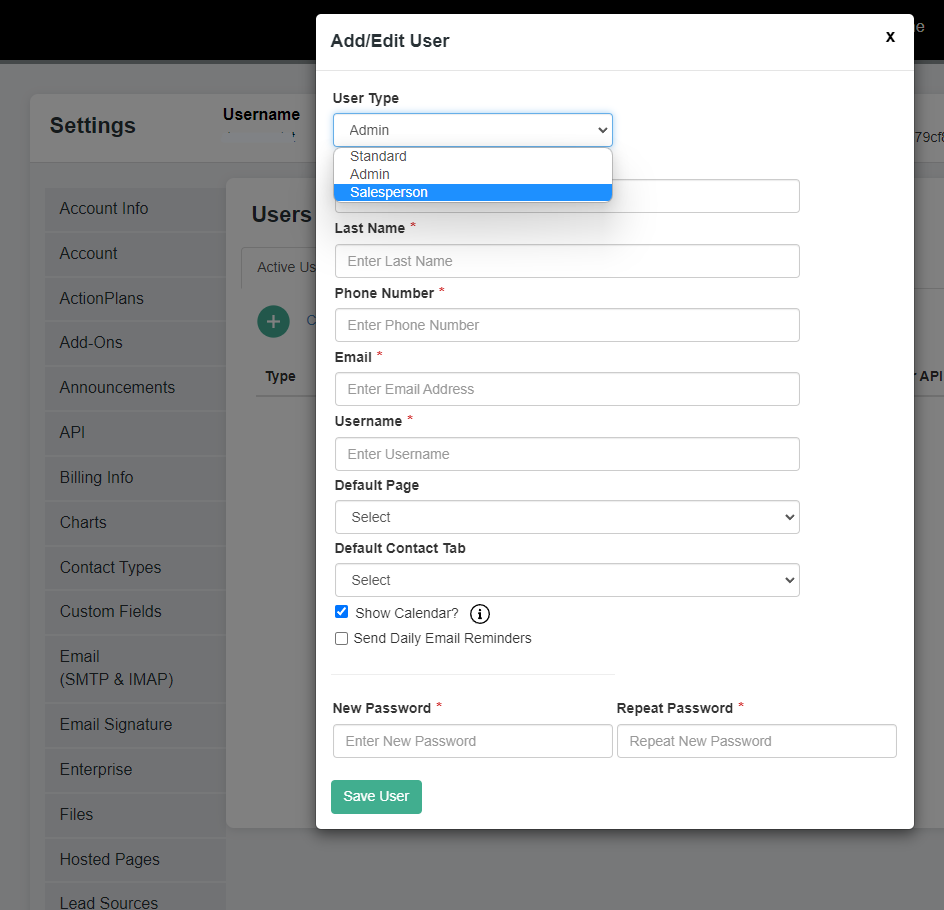
Salesperson User Type
A new User Type has been added within all accounts: Salesperson
This new User type has settings and access limitations as follows:
- User type “Salesperson” can view and access only Contacts as assigned to them within the Contacts List and Pipeline.
- User type “Salesperson” cannot edit Action Plans.
- User type “Salesperson” can view and change limited Settings items similar to Standard User type.
- FYI, the next update phase of this new feature is scheduled to include limiting Dashboard report access to information pertaining only to their (“Salesperson” type user) assigned Contacts.
*Additional updates to the User Settings menu includes the option to select the preferred or default landing page within the account at log-in as well as setting the default primary tab that displays on the Contact Profiles within the account, for each user.
Updates to Existing Features/Settings:
Contact Profile Update
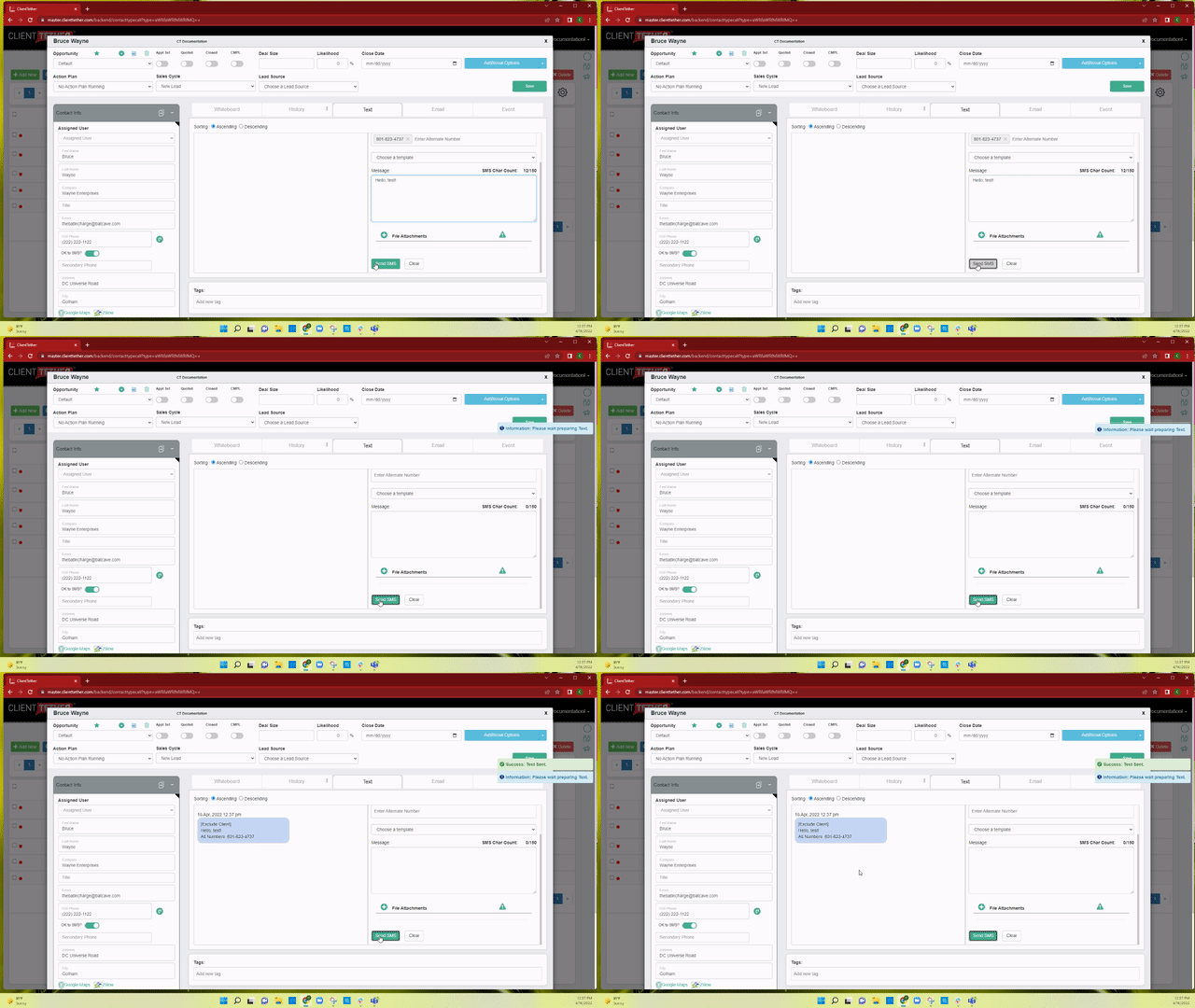
Exclude Client
The “Exclude Client” feature within Text and Email tabs of the Contact Profile has been updated. Moving forward, when the “Exclude Client” option is selected within the Text menu, the Text message panel and History Notes will now indicate that the message was sent excluding the client. This same indication applies to Emails when the “Exclude Client” option is selected.
Token Update
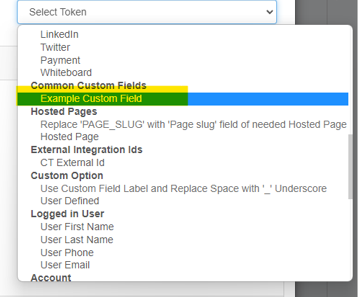
Custom Fields Token added to Tokens Menu
Common Custom Fields that have been added to the Contact Profile within the account will now show in Tokens List drop down menu and can be used throughout the account where Token options are provided.
Proposal System Updates:
- Proposal Feature Update: We’ve added an Info Circle
at “Proposal Notes” and “Work Notes” within the Proposal–viewable by White Label Account Users only.
- Proposal Feature Update: Regarding Proposal Invoices, an Action Plan step to mark Invoice as Paid has been added. When this is applied, the Invoice will be watermarked as “Paid,” and all standard features of Action Plan steps also apply to this new option.
- Proposal Notification Update: We’ve updated Notifications for Contacts where a Proposal was deleted and a new Proposal was added. Moving forward, Proposal notifications will now generate for Contacts when a Proposal is opened, signed, etc. regardless if a previous Proposal was deleted for the same Contact/same Opportunity.
- Proposal Settings Update: At Proposal Settings/PDF Details tab, a toggle switch has been added to indicate if Terms & Conditions (Ts & Cs) should show on Invoices and for User view within account. The default setting is false or set to off. When the toggle is switched on, or set to true, the Ts & Cs will show on Invoices at both User and Customer views.
- Proposal Settings Update: Within the Proposal Settings/System, when Line Items are duplicated, the description will now also be duplicated as well as the flag for edit feature and any other features pertaining to that line item.
- Proposal Settings Update: At the setting for Line Item Price ($) showing on the Quote or Invoice, if selected, both show. If not selected, neither the $ nor Line Item column will now show on the Quote or Invoice.
- Proposal Setting Update: At the Proposal Settings/Tax Display tab, the option to show the Field Titles and Values on either or both the Quote and Work Order for Contact Views/Contractor Views has been added. The default setting for this is true or on for both.
- Proposal Settings Update: Within the Proposal system, the Estimator name will now default to the User credentials for this Proposal. To change this from the default User, simply select the preferred User from the applicable drop-down menu.
End of Release Notes for 04.21.2022