Calendars
February 10, 2020Overview
ClientTether allows you to see all upcoming appointments in your calendar. Calendars are designed to be easy to access and update.
There will be a calendar for each user in an account, and you can always sync your ClientTether Calendar with Google Calendar.
Topics
How To Sync To Google Calendar
To sync you ClientTether Calendar with Google Calendar
- Go to the Calendar page in ClientTether
- Click “Sync With Google Calendar”
- Select Google Account you wish to Sync with
- Follow any additional prompts from Google
Where To View
There are three places you can view your ClientTether Calendar.
- Calendar Page in ClientTether
- Contact Profile in ClientTether
- Synced Google Calendar
Within ClientTether you can see your calendar, and potentially the calendars for other users.
In Google it is important to note that only your calendar syncs.
How To Edit
Editing the calendar has its own nuances depending on whether its in ClientTether or In Google Calendar
Editing Calendar in ClientTether
To edit an event in ClientTether you just need to navigate to the contact profile for the event
Any edits made to an appointment in ClientTether will be reflected in Google Calendar.
Editing Calendar in Google Calendar
Can Be Edited
In Google Calendar there are a few things you can edit, and those edits will appear in ClientTether
- Date
- Time
- New Events
Cannot Be Edited
Likewise, there are a few things in Google Calendar that if edited will not reflect in ClientTether, which are:
- Notes
- Deleting Events originating from ClientTether
We will have an upgrade in the future that will make notes editable.
Deleting Events that have been created in ClientTether is not allowed with Google Calendar. We do this as a safe guard.
Action Plans
February 10, 2020Overview
Action plans are personalized, automated communication sequences that support Lead engagement via phone, SMS, email, and physical media fulfillment that are central to the purpose and value of this system.
Action Plans allow a user to create personal, yet automated engagements to ensure immediate Lead follow up, provide ongoing client sales communications, and support retention and outreach efforts as well as online reputation management after a sale.
These Action Plans are broken down into different types to help you utilize them more effectively.
- Connection Plans
- Conversion Plans
- Retention Plans
- Events Plans
- Seasonal Plans
From the Action Plan menu, you also have access to templates, your email signature, and the ability to export your action plans for review.
Locked Action Plans shared from Enterprise Account to Sub-accounts
When “locked” Action Plans are shared to Sub-accounts from the Enterprise level, Sub-Account users can view the content of Action Plans via the magnifying glass button (
Topics
- Creating Action Plans
- Actions Available
- How to Add an Action
- Differences in Types of Action Plans
- Templates
Creating Action Plans
No matter the type of action plan the creation is very similair.
- Click on the
 by the Add New
 - Enter The Action Plan Name
- Leave your new Action Plan in Draft Mode until it is Ready for use.
- Select Next Plan if you would like to launch another Action Plan after this plan has run its full course.
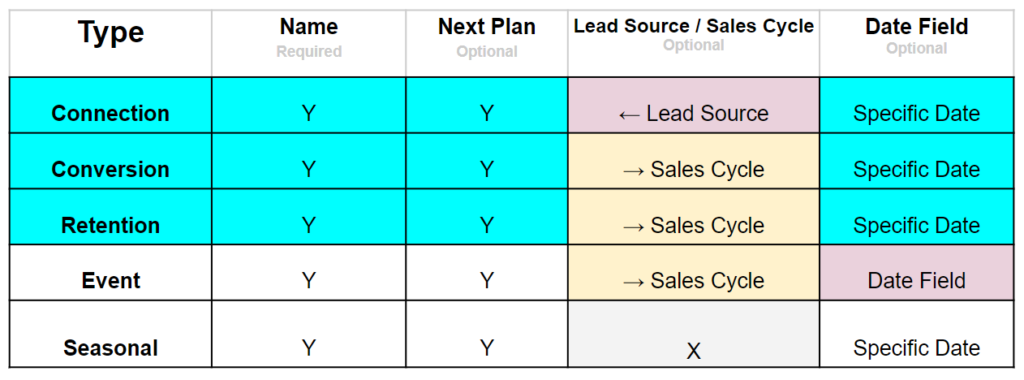
- Then, you may choose a Lead source or Sales Cycle depending on the type of Action Plan (see colored table above). The lead Source selected in a Connection Plan will ensure that each lead from that source immediately is engaged by that Action Plan. A Sales Cycle selected in a Conversion or Retention plan will automatically set that Contact’s Sales Cycle when the Action Plan is activated.
- Also depending on the plan you may be able to add a specific date for the plan.
- When have finished please click

- After you have added all the necessary steps to your Action Plan, be sure and change from Draft mode to Ready using the switch just above the Action Plan’s name.
Actions Available
The following overview provides information on the standard Action Plan steps available.
- Assign User
- Allows you to assign an account user to work directly with the contact
- Also allows user to be unassigned from contact
- Automated Call
- Allows you to schedule a call so you can speak with the contact at a scheduled interval
- Change Contact Type
- Changes Contact Type from one to another. The standard Contact Type names are: Clients, Employees, Partners, Vendors, Other, You have the ability to rename these defaults.
- Contact Reminder
- Reminds you to contact a contact on a set day.
- Email
- Allows you to pre-write and set specific emails that need to be sent at set times to contacts.
- SMS
- Allows you to pre-write and set specific texts that need to be sent at set times to contacts.
Additional Action Plan Steps based on Add-ons enabled in Settings:
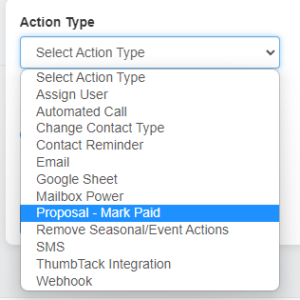
Additional Action Plan Steps are shown at the drop-down Action Type menu.
These specific steps are based on the use of enabled features and add-ons that can be found within the Settings menu at Add-Ons.
In this image, we have highlighted the Proposal-related feature that allows for an Action Plan step to indicate a Proposal Invoice has been paid. Adding this step to the plan directly relates to the use of the Proposal System within the account.
Webhooks
You can add a Webhook, API call, to an Action Plan:
This type of step requires the same settings to be established:
- Assign step name
- Designate if you want a notification
- Select immediate or delayed
You will need to fill out the information for the URL and Header based on the documentation for the software you are using the Webhook to connect to.
You have the option to Get (retrieve), POST or PUT (send) information via the Webhooks.
For the payload, usually only used with POST and PUT, you can toggle to send all information about a client. However, it is usually preferred to only send the information you need.
Use the Key Name and Value fields to designate what information is being sent. For the value field you can either enter something that is always sent such as the number 5 or you can use Tokens to send information unique to the Contact in the Action Plan.
Two things to keep in mind:
- We only send flat data from ClientTether NOT nested
- You are responsible for being familair with the required information needed to connect to the software you are trying to Webhook into.
For an example of a built Webhook please refer to our Zapier Documentation on sending a webhook to a Zap.
Webhook Monitor
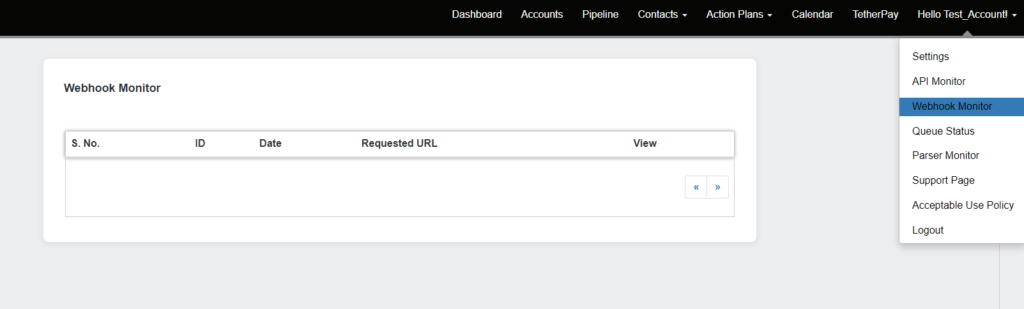
Under the Hello {Your Name} Main Menu there is a Webhook Monitor.
This is used to display information on failed webhook attempts.
When an Action Plan sends data to another system, Users are often blind to the fact. If the action is successful, no one cares. But if the action fails the system has a duty to report that.
1. a system Notification is generated to inform users.
2. the failed attempt is also captured in a History Note
3. the failed attempt is also captured in the Webhook monitor with details that could help diagnose why the send failed.
Building or Editing your Action Plans
Getting Started
From the center of the Action Plan menu, you can see the options for building a new step. To build or add a step to your plan, complete the following steps:
- Select the Action Type (what will this step do)
- Name the Action–you’ll see this name at the list on the left.
- Select if you would like a notification on the action
- Select the timing of the Action as follows:
- Immediate steps will be sent as soon as the Contact is launched on the Plan.
- Delayed steps will be delayed from the time Action plan is launched and will occur as indicated in their menu.
- A note on timing: If multiple steps are added to the Action Plan, and are in the same timing realm – immediate or delayed by 1 minute – the steps will fire in the order displayed in the plan. To change the order you can delete or add steps accordingly until the immediate steps are in the preferred order.
- If a specific date is set for the Action Plan, the following applies:
- Immediate Action Plan steps will be sent out the as soon as the plan is launched for that Contact.
- Before timed Action Plan steps will launch at the designated time before the event (an appointment, for example).
- If someone is added to an action plan outside of the allotted time for an action, the action will be skipped.
- If an action is set to 3 days before an event and you put someone in the action plan 1 day before the event the action will be skipped.
- Delayed timed Action Plan steps will launch as assigned, after the event date/time as indicated in the setup of that step.
- Click
Differences in Types of Action Plans
Connection Plans – These plans are designed to help establish initial connection with new leads, which is why they typically have a Lead Source attached to them.
Connection Plans are typically short term plans, designed to run less then a month and can flow automatically to a Retention Plan if the Lead does not respond to Connection Plan communications.
Conversion Plans – These plans are intended to assist with moving current Leads/Contacts forward in your Sales Cycle/ and business process.
Conversion Plans are designed to typically run 1-3 months and can flow to a Retention Plan if engagement is lost during the sales process.
Retention Plans – These plans are designed to maintain relationships with current, past, and lost customers.
Retention Plans should nurture a lead for 6-months to a year via less aggressive engagement communications (emails, SMS, Contact Reminders, etc.) that are scheduled over a longer-time frame in comparison to other plan types.
Events Plan – Events plans are designed to work around a specific date/Event. This can include an appointment or follow-up, as well as for promotion for an upcoming event, etc.
Please note: If you delete the “Event” for that Lead, any remaining Event Plan steps will also be deleted from Upcoming Actions within the Contact Profile for that Lead.
Seasonal Plans – Seasonal Plans are designed to work around a specific date/Event. This can include appointments, conferences, promos, etc. This type of plan is also designed to work with groups.
User Manual
February 10, 2020The user manual is designed to give you detailed information and instructions that you need to maximize the effectiveness of ClientTether.
Below is a list of topics that are available in our User Manual. Please be aware that we are constantly updating and adding to this list so you will want to check this page frequently.
ClientTether API Doc 2.0
February 10, 2020
Our API is designed to open up ClientTether and allow developers push and pull all sorts of data. The API allows developers to Create, Read, Update, and Delete (CRUD) most (not all) items within ClientTether. For example, if a feature was written as CRuD that would mean that “Update” is not available. CRUd would mean that “Delete” is not available.
For a complete collection of our APIs, you can download the Postman collection from https://documenter.getpostman.com/view/34603208/2sB3BEoW7A This collection allows you to easily test and integrate our APIs with your applications.
Getting Started
Version 2.0 of our API is a REST compatible solution using the GET, POST, and DELETE methods. The following pages details the Parameters and Supported calls. If the request is not recognized by the system, the API server will respond with an HTTP error code. If the system is able to process the request, it will return an appropriate JSON response.
For a more hands-on experience, you can download our API collection in Postman format from https://documenter.getpostman.com/view/34603208/2sB3BEoW7A This will help you test the endpoints directly in Postman.
Please note: To perform a Duplicate Check on create_client, please visit the Settings tab in the Account and toggle the button on to activate this setting  . By default, this setting is disabled and as such, cloned and sub accounts will also hold this setting as disabled unless otherwise updated via the toggle in the Settings tab for that account.
The API call consists of four parts:
- Headers
- The URL
- The Supported Request
- The Parameters
Headers
There are two Header Keys required to access an Account’s information via API:
1. X-Access-Token
2. X-Web-Key.
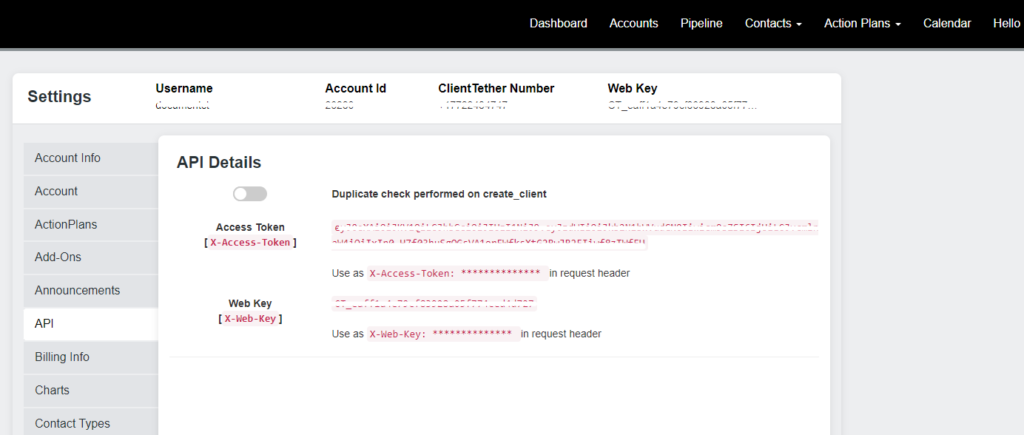
Your Enterprise Access Rights are built into the X-Access-Token and can be found on the API tab in Settings – at the Enterprise level only. The X-Access-Token is based on Username, Userlevel, whitelabel ID and Secret Value as part of the HASH. By design and for security, if the mentioned Account information is changed the X-Access-Token is updated automatically.
That Enterprise access token must be used in conjunction with an X-Web-Keys for each account and Sub Account access. Let’s repeat that in other words. The X-Access-Token is required to gain access and the X-Web-Key identifies which account you want to accessing.
The X-Access-Token is only available on the API tab in Settings at the Enterprise Level.
THe X-Web-Key is available in each Account and by an API call for Subaccounts.
Please do not share these tokens with anyone outside of your organization and development teams. See Image. Without these values being presented in the header of each call, it will fail at the server level and not even reach our API. Remember, these items are passed in the header of all requests.
Access Verification
The X-Access-Token and X-Web-Key are placed in the Header of each Request Call. As an example:
x-access-token:eyJ0eXAiOiJKV1QiLCJhbGciOiJIUzI1NiJ9.eyJzdWIiOiJjdGRlZmF1bHQiLCJyb2xlIjoiNSIsIm9yaWdpbiI6IjEifQ.lL…
x-web-key:CT_38792a5ceaea9662c…
Note: We are not using an Authentication process but rather an Access Rights control that is managed on our API server. So place YOUR X tokens in the header of each request! This is the first mistake most developers make when starting with our API, they use our sample data above instead of their assigned X-Access-Token.
For a comprehensive guide and examples, you can download our Postman collection from https://documenter.getpostman.com/view/34603208/2sB3BEoW7A.
Building a GET Call
We have two formats for building a GET Call
| URL | Supported Request | Separator | Parameters |
|---|---|---|---|
| https://api.clienttether.com/v2/api/(updated URL as of 3/4/19) | read_client_exist | ? | phone=3039291447 |
| https://api.clienttether.com/v2/api/(updated URL as of 6/28/19) | read_client_by_id | / | 1234 |
Our first GET method: to build the API Call you will start with our API URL followed by a Supported Request. Next will be the “?” to separate the URL from the Parameter String. Finally you will send the list of parameters also known as a Query String (for GET method).
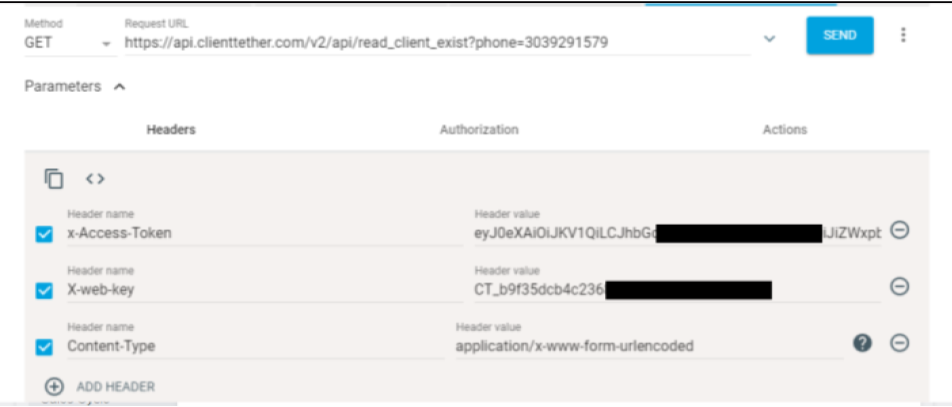
By way of example, if you wanted to know if a client exist with a specific phone number, then the full request would be “https://api.clienttether.com/v2/api/read_client_exist?phone=3039291447”
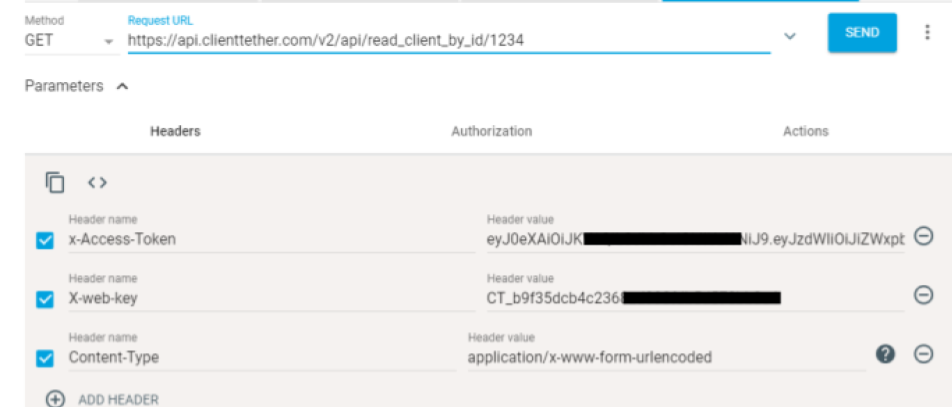
For the Second GET method in Yellow, as shown in the table above, To build the API Call to see the details of a client with the client_id = “1234”, the supported API Request is: “https://api.clienttether.com/v2/api/read_client_by_id/1234”
Building a POST Call
Because we require access Headers the REST POST is different than a webform POST, you do not build the string in the exact same way. If you need help or hints with the structure, we recommend using a REST client like Google’s ARC to test and build.
If all you desire to do is POST webform data to insert new leads, you might want to review POSTing to ClientTether 2020.
To make it easier, you can download our Postman collection from https://documenter.getpostman.com/view/34603208/2sB3BEoW7A This collection contains all the necessary endpoints and example requests for testing.
Request Parameters
Parameters are a list of Key:Value pairs sent in the BODY of the request. The list of parameters you need to send will depend on the Supported Request you desire to initiate.
Acceptable keys are listed in the Parameter tables below.
Required Keys for a specific request are listed in the Supported Request tables.
For Example, if you want to create a Contact, you would (in addition to the Headers) place certain Key:Value pairs in the Body of the Request. See the ARC slide deck for a more complete example.
Parameter Tables
Below you will find a set of tables that define the Keys for the Key:Value pairs. It should be obvious that your processes will provide the Values.
Client Parameters
| Key | Description | Limits |
|---|---|---|
| client_id | May be required in some API Calls | |
| firstName | Required for Create_Client | String |
| lastName | Required for Create_Client | String |
| phone | 10 digit phone number, This is assumed to be a Mobile phone | Ten digits only. No formatting accepted |
| smsok | 1 if okay to text, 0 if not. defaults to 1 if not provided | [1, 0] |
| second_phone | Secondary Phone | Ten digits only. No formatting accepted |
| email address of the lead must be unique for each client | Well formatted email string | |
| address | street address | String |
| city | city | String |
| state | US states and CA Province | 2 letter abbreviation only |
| zip | Postal code | US and CA acceptable5 Digit Zip5-4 Digit Zip5-4-2 Digit Zip A1A 1A1, where A is a letter and 1 is a digit, with a space separating the third and fourth characters |
| compName | Company Name | String |
| tag | Comma separated list of tags. New tags will be created if needed | |
| job_title | Title for Person | String |
| external_id | Foreign Key Integration with CT | Integer |
| third_party_name | Alt option from external_ID use third_party_name and third_party_id | String |
| third_party_id | String | |
| deal_size | Whole Number | |
| deal_closed | Indicates if the deal (of Deal Size) is closed = sold. | [1,0] |
| age | We do not accept Birthdays! | Whole Number |
| education | String | |
| gender | [M, F] | |
| high_net_worth | Whole Number | |
| home_owner_status | [Own, Rent] | |
| household_income | Whole Number | |
| length_of_residence | Whole Number | |
| market_value | Whole Number | |
| material_status | [Single, Married, Divorced] | |
| occupation | String | |
| presence_of_children | [1,0] | |
| created | Date client entered in system as a new lead. Defaults to Today if not provided. If you provide this date we will set accordingly. | YYYY-MM-DD |
| presence_of_pets | [1,0] | |
| anniversary_1 | YYYY-MM-DD | |
| anniversary_2 | YYYY-MM-DD | |
| This is for a Facebook Profile ID. Mine would be: hall303 and we will generate the complete link:https://www.facebook.com/hall303 | String | |
| This field is for a LinkedIn profile. Mine would be: itmanagementconsultingAnd we will generate the complete link: https://www.linkedin.com/in/itmanagementconsulting/ | String | |
| String | ||
| action_plan_id | Do not send an action plan ID unless it is requested. Sending an Action Plan ID will override anything that is currently set up in the system. Sending a “0” will set the Action Plan to “No Action Plan Running”. Sending the same Action Plan ID as the existing one will do nothing. Sending a different Action Plan ID will initiate the new Action Plan. Action plan IDs can be found in Action Plans Lists under the Plan Id column. If your customer asks you to send this information with a lead, ask them to give you the action plan id. | String |
| sales_cycle_id | Do not send a sales cycle ID unless it is requested. The sales cycle or column will default to New Lead, which does not have an ID. The name of this sales cycle cannot be changed. If the account owner wants you to send leads to a different sales cycle, the sales cycle ID can be found in Settings > Sales Cycles. | String |
| lead_source_id | It is always best that you assign a lead_source_id value to a new lead. | STRING ID |
| client_category | *Maids specific | String |
| whiteboard | Writes to the whiteboard (will replace anything existing if updating a client) | String |
| append_whiteboard | Will add what you send to the whiteboard. Must be used as an update | String |
| clients_date_last | Each Account Owner can use this field for whatever they choose. I.E. Last date of service | YYYY-MM-DD |
| clients_date_next | Each Account Owner can use this field for whatever they choose. I.E. Next date of service | YYYY-MM-DD |
| new_lead_notification | This determines if the Account Owner will receive notice that they have a “New Lead”. The standard notices will be sent: Email, Text and Software Notification. 0= No Notifications (default) 1= Software Notification 2= All Three Notifications: Email, Text and Software NOTE: Developers are missing this setting | [0,1,2] String |
| contact_type | The system has 5 types of contacts. They are Client, Employee, Partner, Vendor, Other. To Assign the the correct user type you must designate the appropriate number for user type. 1 = Client 2 = Employee 3 = Partner 4 = Vendor 5 = Other If no number is provided the system will default to a 1 for Client. | [1, 2, 3, 4, 5] |
| assigned_user_id | This is a User’s ID that is assigned to manage the Contact | String |
| utm_source | UTM source value (traffic source, e.g. google, facebook) | String (optional) |
| utm_medium | UTM medium value (channel type, e.g. cpc, email) | String (optional) |
| utm_campaign | UTM campaign name | String (optional) |
| utm_term | UTM term/keyword value | String (optional) |
| utm_content | UTM content/variant value (ad or link variant) | String (optional) |
Additional Parameters
These parameters are for queries only and are not a stored value. Some of these parameters may be required for certain API Calls.
| Key | Description | Limits |
|---|---|---|
| end_date | End Date of a date sensitive Read. | YYYY-MM-DD |
| limit | Limits the number of records to be returned. Default is 100, Max is 100 | number |
| offset | Starts the record selection beginning with an offset. If you already retrieved the first 100 clients in your list, then to get the next 100 you would have an offset of 100. | number |
Expansion Parameters
This table explains how ClientTether will be expanding acceptable parameters for Client Info. All parameters mentioned in Client Parameter Table as “reserved” parameter names. The API will accept any non-reserved parameter name and its value as a simple String (striping all HTML). This concept makes the Client Table infinitely expandable and customizable.
| Key | Description | Limits |
|---|---|---|
| Any non-reserved parameter name. | There is a current Limit of 100 characters for this string length, until proven otherwise. | String |
Lead Source Parameters
Some of these parameters may be required for certain API Calls.
| Key | Description | Limits |
|---|---|---|
| lead_source_id | The System ID for a specific Lead Source | Int |
| lead_source_name | The Name given to a specific Lead Source | String |
| lead_source_web_key | The MD5 code assigned to a specific Lead Source | String |
Action Plan Parameters
Some of these parameters may be required for certain API Calls.
| Key | Description | Limits |
|---|---|---|
| action_plan_id | The System ID for a specific Action Plan | Int |
| action_plan_name | The Name given to a specific Action Plan | String |
| action_plan_type | Indicates which type of Action Plan this is. | [Connection, Conversion, Retention] |
| action_plan_link_id | 1- Connection Plans can link to a Lead Source. Meaning, if a new lead is acquired and its lead source is set to this value, this Action Plan is also initiated. A Lead Source should Only be assigned to one Action Plan. 2- Conversion Plans can link to a Sales Cycle. Hence, if an Action Plan is initiated for a Client, that Client will be assigned the New Sales Cycle also. | int |
| action_plan_link_name | Indicates the name of the link associated with a specific Action Plan | String Read only |
| action_plan_next_plan_id | Indicates the ID of the next plan associated with a specific Action Plan | int |
| action_plan_next_plan_name | Indicates the name of the next plan associated with a specific Action Plan | String Read only |
History Notes
u
| Key | Description | Limits |
| client_id | is from ClientTether and can be obtained via API or export. | int |
| type | [sms_in, sms_out, email_in, email_out, note] (anything else will be saved as ‘note’) | |
| utc_datetime | will follow the format: yyyy-mm-ddT00:00:00Z | follow the UTC format |
| subject | text string | |
| body_content | text string | |
| user_name | matched the first and last name from the User Settings | 120 characters |
Sales Cycle Parameters
Some of these parameters may be required for certain API Calls.
| Key | Description | Limits |
|---|---|---|
| sales_cycle_id | The System ID for a specific Sales Cycle | Int |
| sales_cycle_name | The Name given to a specific Sales Cycle | String |
| sales_cycle_active_status | Define whether a specific Sales Cycle is an Active Path Sales Cycle or an Inactive Path Sales Cycle. | [1,0] |
| sales_cycle_order | Indicates the order of this specific Sales Cycle | Int |
| sales_cycle_contact_type | New 9/27/19 and indicates the contact type: 1=Client (default if blank), 2=Employee, 3=Partner, 4=Vendor, 5=Other | Int |
Event Parameters
Some of these parameters may be required for certain API Calls.
| Key | Description | Limits |
|---|---|---|
| event_id | The System ID for a specific event | Int |
| event_type | The Type of Event. | [Call, Contact Reminder, Appointment] |
| event_date | Indicates the date of this event. | YYYY-MM-DD |
| event_time | Indicates the time of this event. | HH:MM:SS |
| event_note | A Note associated with the event. | String |
| user_id | This is the id for the assigned user’s calendar on which you want to schedule the Event. | int |
| event_manual_action_plan_id | Optional: you can assign an Event Action Plans but only those that are set for Manual Schedule. | Int |
| event_end_date | Unique for Next Appointment only, you need to provide an end date | YYYY-MM-DD |
| event_end_time | Unique for Next Appointment only, you need to provide an end time | HH:MM:SS |
| email_list | Accepts a comma separated list of emails where the appointment invitation will be sent. IE: name1@domain.com,name2@domain.com | string Optional |
| template_id | If not provide there is a previously hardcode Title that is used with external calendars. You must provide a template_id to control this option. | string – Optional |
Email Parameters
Some of these parameters may be required for certain API Calls.
| Key | Description | Limits |
|---|---|---|
| email_subject | The Subject of the email. Required | String |
| email_date | Indicates the date of this email. When Creating a manual email, if date is omitted, Today will be assumed. | YYYY-MM-DD |
| email_time | Indicates the time of this email. When Creating a manual email, if time is omitted, Now will be assumed. | HH:MM:SS |
| email_body | The Body of the email. You will need to provide your own signature lines. Opt out parameters will be appended. | Plain Text String with hard returns. No other formatting accepted HTML or otherwise. |
| email_cc | A comma separated list of email addresses to Carbon Copy with this email | String |
| email_bcc | A comma separated list of email addresses to Blind Carbon Copy with this email. | String |
| exclude_contact | A flag to exclude the Contact on this email. 1=Exclude, 0 or blank will include the Contact. | [1,0] |
Text Parameters
Some of these parameters may be required for certain API Calls.
| Key | Description | Limits |
|---|---|---|
| text_date | Indicates the date of this text. When Creating a manual email, if date is omitted, Today will be assumed. | YYYY-MM-DD |
| text_time | Indicates the time of this text. When Creating a manual email, if time is omitted, Now will be assumed. | HH:MM:SS |
| text_body | The body of the Text | String |
Immediate Call Parameters
These parameters are for API calls only and are not a stored value. Some of these parameters may be required for certain API Calls.
| Key | Description | Limits |
|---|---|---|
| agent_phone | This should be a User in the Account but the system will call the User regardless | 10 Digits only |
| client_full_name | The name you want to be announced to the agent when they answer the phone. | Text |
| client_phone | This should be the recently collected phone number of a contact that wants a call now | 10 Digits only |
| say | The system will by default say: This is ClientTether connecting you to {{client_full_name}}. What you write will be stated after the above information. | Text |
Tag Parameters
This is a list of Tags assigned to the Account. Some of these parameters may be required for certain API Calls.
| Key | Description | Limits |
|---|---|---|
| tag_id | ||
| tag_value | String |
User Parameters
Some of these parameters may be required for certain API Calls.
| Key | Description | Limits |
|---|---|---|
| user_id | The System ID for a specific user | Int |
| user_type | The User Type. Only in Create | [Standard, Admin] |
| user_first_name | First Name for the User | String |
| user_last_name | Last Name for the User | String |
| user_phone | Phone associated with the User in the System | String |
| user_email | The email assigned to the User. | String |
| user_username | The login username for a User | String |
| user_show_calendar | Indicates whether to show the calendar with other users when scheduling an event in the system. Defaults to No = 0. | [1,0] |
| user_password | Sets the password for the User. Only in Create | String |
Account Parameters
Some of these parameters may be required for certain API Calls.
| Key | Description | Limits |
|---|---|---|
| account_id | The System ID for a specific account | Int |
| account_type | The Account Type. | [Standard, Multi-level] |
| account_first_name | First Name for the Account | String |
| account_last_name | Last Name for the Account | String |
| account_owner_name | Full name (First and Last Name) for the Account Owner | String |
| account_company_name | String | |
| account_addr1 | String | |
| account_addr2 | String | |
| account_addr3 | String | |
| account_office_phone | Phone associated with the Office Phone in the System | String |
| account_phone | Phone system will call … | String |
| account_email | The email assigned to the User. | String |
| account_username | The login username for a Account, CRuD Only. | String |
| account_web_key | cRud only | String |
| account_ctphone | cRud only | String |
| account_return_phone | 10 digits only | |
| account_return_text | 10 digits only |
Proposal Parameters
New 2020/01/15
This is only for Accounts that use our proprietary proposal system to generate bids for work to be performed for Contacts. Some of these parameters may be required for certain API Calls.
| Key | Description | Limits |
|---|---|---|
| proposal_id | Proposal Unique Identifier as found in the system. | Big Int, Transported as String |
| proposal_type | This will be the name of the Proposal. Many accounts have more than one type of Proposal in the system. | String |
| proposal_num | An account unique number | String |
| estimator | Which User was assigned as the Estimator | String |
| production_manager | Which Users was assigned as the Production Manager | String |
| proposal_notes | General Notes | String |
| work_notes | More Specific Notes | String |
| final_price | The Derived Final Price after all Line Items and Discounts | String |
| discount | Sum of all discounts | String |
| job_start_date | Proposed job start date | String |
| job_end_date | Proposed job completion date | String |
| line_item_detail | This is an Array of items with: Description, Line Price and Notes | |
| prepparation_proceedures | General Notes | String |
| painting_proceedures | General Notes | String |
| specific_notes | More specific Notes | String |
| client_notes | More Specific Notes | String |
| foreman_notes | More Specific Notes | String |
| other_notes | Additional Notes | String |
| recommended_products | This is an Array with Product_type1 and Product Description |
Proposal Payment Parameters
New 2020/01/15
Payments collected can be entered into the System for tracking of Royalty Payments. NOTE: at this time the System does not “Process” payments, It is just a recording of the facts. Some of these parameters may be required for certain API Calls.
| Key | Description | Limits |
|---|---|---|
| proposal_id | Foreign Key to match to the System Unique identifier | String |
| proposal_number | An Account specific proposal number | String |
| payday | The date the Payment is intended to Apply | Date format: yyyy-mm-dd |
| amount | Amount of payment being recorded | For like decimal: transported as string |
| type | How the payment was made | [Cash, Card, Check,Other] |
| status | During what status of the project was the payment made. | [Deposit, Progress, Final] |
| created_date | The system date when payment was entered in | Date format: yyyy-mm-dd |
Supported API Calls
Supported API Calls tell us what you want us to do with the data you are sending to us. You will append a supported API call to the end of the standard URL every time. Use one of the supported Values in the tables below.
For a comprehensive guide and examples, you can download our Postman collection from https://documenter.getpostman.com/view/34603208/2sB3BEoW7A. This collection contains all the necessary endpoints and example requests for testing.
Create (CRUD) into the System
Use this table of supported API Calls to create data in our system. When you create data in the system use the POST method, you will receive a JSON response with a code and a message formatted like: {“ResultCode”:“CT200”, “Message”:“Success”}. More details in Appendix: Return Strings
| Value | Description | Limits |
|---|---|---|
| create_client | Inserts a new client into the account represented by the x-web-key. You can provide as many Client Parameters as listed above. If Lead Source is provided then its attached Action Plan should be initiated unless an Action Plan is also provided, then it takes precedence. create_client will insert the record as provided regardless of duplicate nature. If concerned with duplicates, you should use one of the read commands to see if a client already exists. | Requires firstName, lastName |
| create_manual_email | Prepares for sending a manual email. Will be inserted in the History Notes as an Integration Assignment. If no date or time is supplied, the email will be sent immediately. Returns Success or Fail | Requires: client_id, email_subject, email_body |
| create_manual_text | Prepares for sending a manual text. Will be inserted in the History Notes as an Integration Assignment. If no date or time is presented, the text will be sent immediately. Returns Success or Fail | Requires: client_id, text_body |
| create_client_history_note | Will be inserted in the History Notes as an Integration Assigned action. Returns Success or Fail | Requires: client_id, note_body |
| create_client_event | Assigns an event to a client. Returns Success or Fail | Requires: client_id,event_type, event_date, event_time, event_note, event_manual_action_plan_id and user_id (for Appointment type) |
| create_tag | Creates a tag in the Account’s list of tags. Returns Success or Fail | Requires: tag_value |
| create_lead_source | Puts a new Lead Source into the Accounts system and generates a web_key. See Read_Lead_Source_List | Requires: lead_source_name |
| create_user | Puts a new User into the an Account’s User list. See Read_User_List | Requires: all parameters except:user_id, |
| create_action_plan | Inserts a new Action Plan into an Account’s Action Plan List | Requires: action_plan_name, action_plan_type |
| create_sales_cycle | Inserts a new Sales Cycle in an Account’s Sales Cycle List | Requires: sales_cycle_name, sales_cycle_active_status, sales_cycle_order |
| create_immed_call | Provide all 4 pieces of data from the Immediate Call Parameters table. | Requires: agent_phone, client_full_name, client_phone, say |
| create_history_notes | Inserts one or more History Notes in a JSON object called “notes”. Example: { “notes”: [ { “client_id”: “”, “type”: “”, “utc_datetime”: “”, “subject”: “”, “body_content”: “”, “users_name”: “” }, { “client_id”: “”, “type”: “”, “utc_datetime”: “”, “subject”: “”, “body_content”: “”, “users_name”: “” } ] } | Requires all six field keys. Some values may be “”. client_id is from ClientTether and can be obtained via API or export. type [sms_in, sms_out, email_in, email_out, note] (anything else will be saved as ‘note’) utc_datetime must follow the format: yyyy-mm-ddT00:00:00Z subject text string body content text string user_name any string, will appear in reporting (max 120 characters then truncate) (blank data will put the Account Owner’s Name) |
| hosted_page_schedule_meeting | This is a POST- Used to schedule a mtg while taking advantage of our advanced proximity schedule coordinator. Must get info from read_hosted_pages and read_available_timeslots | Requirement: host_id, to identify the mtg client_id, is required for existing contacts. *All key-value pairs returned from the time slot query must be included when scheduling. |
Read CRUD Data from ClientTether
Use this table of supported API Calls to read data from our system. When you read data from our system use the GET method and you will receive a JSON response formatted like:
{…”data”:[
{ “firstName”:”John”, “lastName”:”Doe”… },
{ “firstName”:”Anna”, “lastName”:”Smith”… },
{ “firstName”:”Peter”, “lastName”:”Jones” …}
]}
More details available in Appendix: Return Strings.
| Value | Description | Limits |
|---|---|---|
| read_client_exist | *BEFORE sending the call, create_client, your system should check if client already exists with one or more of these read requests.ClientTetherID in prestaging.tbl_client Response if client does not exist: {“resultCode”:“CT515”, “Message”:“No Record Found”, “client_id”: false, “external_id”:”98745″} Response If exist : {“ResultCode”: “CT_200”, “Message”: “Success”, “TotalRecord”: 1, “data”: [{ “client_id”: “8051632”, “external_id”: “16051989” }]} | Requires: firstName or lastName or phone or email |
| read_client_list | Data dump of all parameters that are associated with the first 100 “Main” Clients. This call has a focus on “all” main contacts and accepts an optional parameter: active_flag [0,1,2] If no active_flag is sent the the response will send both Active and Archived contacts. If the flag is sent: 0 = Archived Contacts only 1 = Active Contacts only 2 = Both Active and Archived Contacts | Accepts limit and offset ie. limit=50&offset=10(This will return 50 clients from offset 10) Max on limit is 100. from_date (created date) to_date (created date) |
| read_client_by_id | Data dump with all parameters that are associated with Client of the provided client_id. | Requires: client_id |
| read_client_by_external_id | Data dump with all parameters that are associated with Client of the provided external_id. | Requires: external_id |
| read_custom_field_by_contact | Provides a list with all custom fields with their values tied to the contact. | Requires: client_id |
| read_client_history_notes | Requires: client_id | |
| read_action_plan_by_id | Requires: action_plan_id | |
| read_action_plan_list | Includes action_plan_id in the returned data | Accepts: action_plan_name treat as “ like ‘string%’ “ |
| read_lead_source_list | ||
| read_sales_cycle_list | ||
| read_user_by_id | Read a single User Record baseURL/read_user_by_id/123456 where 123456 = known User ID | Requires: User ID |
| read_user_list | Reads the whole User list for the account. | |
| read_appts_by_user_id | This will return a JSON list of appointments for 7 days from today’s date. | |
| read_tags_list | The tags assigned to a specific account. | |
| read_account_list | The Web_Key authorization you provide must be a Multi-Level Account or an Enterprise Account | |
| read_opportunity_list | Opportunities are akin to clients. This call returns a list of “all” opportunities matching the full query, including proposal data in each record returned IF proposals are attached. Each parameter adds an “AND” to the Query. Date formats are YYYY-MM-DD HH:MM:SS (explicit time is required) From Date use the >= passing both from and to dates the query will use “between and including” stateFromDate is used in combination with State to query the date that the Contact reached a specific State. Use read_contacts for just Main Contacts | limit [max 100] offset, contact_type [1,2,3,4,5 -default all] client_id [of main opportunity and will retrieve the rest] state [appt, quote, closed, completed] stateFromDate stateToDate cycle_id [sales cycle id] user_assigned_id proposalModifiedFromDate, proposalModifiedToDate from_date (created date) to_date (created date) modified_date_from modified_date_to |
| read_pending_actions | Returns a list of pending action for a given Contact. | Requires: client_id or external_id |
| read_proposals | Reads the proposals for a specific Client/Opportunity. For more details click here. | Requires: client_id |
| read_proposal_payments | Reads the payments created for a specific client from created date provided created_date will send all payments since that date. Format: “YYYY-MM-DD” | Requires: client_id and created_date |
| read_all_payments | Reads all payments collected by a specific Account. created_date will send all payments since that date | allows created_date “YYYY-MM-DD” |
| read_sales_cycle_any_activity | Returns activity for same chart on dashboard between specified dates | Start Date “YYYY-MM-DD” End Date “YYYY-MM-DD” |
| read_all_events | Returns events for all clients in a specific account (100 at a time) and includes user details in each event object. By default, it returns records from today’s date with an option to set a custom date using the “from_date” parameter. Additionally, you can set the “offset” parameter to paginate the results, with a default of returning 100 records per API call. | optional: from_date “YYYY-MM-DD HH:MM:SS” Time is required if providing date. offset: default 0 |
| read_all_client_events | Returns all events scheduled for a specific Contact. Remember that opportunity_id is the same as a client_id. | requires: client_id or external_id optional: from_date “YYYY-MM-DD HH:MM:SS” Time is required if providing date. offset: default 0 |
| read_hosted_pages | Returns an array of all available hosted scheduling pages. Response Example: [ { “hosted_page_id”: 42, “page_slug”: “my-meeting-page”, “meeting_name”: “Initial Consultation”, “description”: “30-minute intro call”, “aptLength”: 1800, “wrapupTime”: 10, “advNotice”: 2, “maxDays”: 100, “users”: [123,124], “type”: “video” } ] Meeting Type Reference: “office” — At office location “contact” — At contact’s location “phone” — Phone call “video” — Video conference | |
| read_available_timeslots | Returns a 10 day list of time slots available for the specific Mtg Scheduler and User This is a POST not the customary GET. Field Requirements by Meeting Type: Meeting Type and Required Fields Office: None Contact: streetAddress, city, state, zip Phone: mobile Video: None | Requires: hosted_page_id, Hosted page to query for time slots start Optional: start, Days from today to begin searching (default = advNotice). end, Days ahead to search (default = 10, max = 10) client_id, Use for existing contacts; otherwise provide address/phone per meeting type. |
Update CRUD Data in Client Tether
Use this table of supported API Calls to update data in the system. When you update data in the system use a POST method and you will receive a JSON response with a code and a message formatted like:
{“resultCode”:“CT200”, “Message”:“Success”}. More details in Appendix: Return Strings.
| Value | Description | Limits |
|---|---|---|
| update_client_by_id | Updates the Clients with the parameters provided. If Action Plan is updated, pending actions will be removed.Returns the single client values in all fields. | Requires client_id |
| update_client_by_external_id | Updates the Client with the parameters provided. Only the field parameters provided will be updated. Returns the client values of all fields.If Action Plan is updated, pending actions will be removed. | Requires external_id |
| update_client_event | Updates a specific event | Requires: event_id optional: event_type, event_date, event_time, event_end_date, event_end_time, event_note, user_id, event_manual_action_plan_id, email_list template_id |
| update_action_plan_by_id | Updates the Action Plan with the parameters provided. Returns the single Action Plan values in all fields. | Requires:action_plan_id |
| update_lead_source_by_id | Updates the Lead Source Name with the parameter provided. Returns the single Lead Source parameters. | Requires:lead_source_idlead_source_name |
| update_sales_cycle_by_id | Updates the Sales Cycle with the parameters provided. Returns the single Sales Cycle Parameters | Requires:sales_cycle_id |
| update_user_by_id | Updates the User with the parameters provided. Returns the single User with all parameters. | Requires:user_id |
| update_account_by_id | Updates the Account with the parameters provided. Returns the single Account’s parameters. | Requires:account_id |
Delete CRUD Data in Client Tether
Use this table of supported API Calls to delete data in the system. When you delete data in the system use a DELETE method and you will receive a JSON response with a code and a message formatted like: {“resultCode”:“CT200”, “Message”:“Success”}. More details in Appendix: Return Strings.
| Value | Description | Limits |
|---|---|---|
| delete_client_by_id | Deletes a single Client. | Requires client_id |
| delete_client_by_external_id | Deletes the Clients with the parameter provided. | Requires external_id |
| delete_lead_source_by_id | Deletes the Lead Source. | Requires: lead_source_id |
| delete_sales_cycle_by_id | Deletes the Sales Cycle. | Requires: sales_cycle_id |
| delete_user_by_id | Deletes the User. | Requires: user_id |
| delete_account_by_id | Deletes the Account with the parameters provided. | Requires: account_id |
| delete_client_event | Deletes an Event | Requires: event_id |
Response Strings
CRUD Request and Error Responses
When you Create, Update, or Delete data in our system, you will receive a JSON formatted response using the following table.
{“ResultCode”:“CT200”, “Message”:“Success”…}
| resultCode | Message |
|---|---|
| CT200 | Success |
| CT400 | Bad Request |
| CT404 | Request Not Found |
| CT500 | Unknown Error |
| CT501 | Missing Required Key:Value Pair(s) |
| CT510 | CTSCODE does not match |
| CT512 | Can not delete as requested. Parameter is still in use. |
| CT515 | No Record Found |
| CT520 | Duplicate Entry |
| CT525 | Insert Failed |
| {{Key}} | Value outside defined limits. CT will throw an error code on the first value that does not conform to validation rules, resulting in a single message being returned. {resultCode: ‘“KeyName”, Message: “Validation Issue”} |
The Response will be augmented with additional data from time to time. For example, if you create_client, the system will also include a record count and return the client_id and external_id for your consumption or validation.
{“ResultCode”:”CT_200″,”Message”:”Success”,”TotalRecord”:1,”data”:[{“client_id”:”8475832″,”external_id”:”1234″}]}
Other responses may be developed similar to the HTTP responses listed in this doc.
CRUD Read Calls Responses
When you read data from our system, you will receive a JSON formatted Array like so:
{…”data”:[
{ “firstName”:”John”, “lastName”:”Doe”… },
{ “firstName”:”Anna”, “lastName”:”Smith”… },
{ “firstName”:”Peter”, “lastName”:”Jones” …}
]}
The JSON object name will reflect the type of data you requested as follows:
Client Reads
will include all Client Parameters
{…”data”:[
{ “firstName”:”John”, “lastName”:”Doe”… },
{ “firstName”:”Anna”, “lastName”:”Smith”… },
{ “firstName”:”Peter”, “lastName”:”Jones” …}
]}
Action Plan Reads
will have a two level JSON Array with all available data
{…”data”:[
{ “action_plan_id”:”123456”,”action_plan_name”:”The Name of Plan”,”action_plan_type”:”Connection”,”action_plan_link_id”:”123456”,”action_plan_link_name”:”Name of Link”,”action_plan_next_plan_id”:”123456”,”Action Steps”:[
{ “Order”:”1″, “Type”:”email”,”Date”:”1″, “Time”:”00:00:00″,”Subject”:”MyFirstEmail”, “Body”:”La te da and doe ray me”},
{ “Order”:”2″, “Type”:”email”,”Date”:”1″, “Time”:”00:00:00″,”Subject”:”MySecondEmail”, “Body”:”La te da and doe ray me”},…
]
}, …
]
}
Lead Source Reads
will include all Lead Sources and associated Parameters
{…”data”:[
{ “lead_source_id”:”123″, “lead_source_name”:”Craftjack”, “lead_source_web_key”:”CT-123″ },
{ “lead_source_id”:”234″, “lead_source_name”:”HomeAdvisor”, “lead_source_web_key”:”CT-234″ },…
]}
Sales Cycle Reads
will include all Sales Cycle and associated Parameters
{…”data”:[
{ “sales_cycle_id”:”123″, “sales_cycle_name”:”Apt Scheduled”, “sales_cycle_active_status”:”1″, “sales_cycle_order”:”1″ },
{ “sales_cycle_id”:”234″, “sales_cycle_name”:”Pending”, “sales_cycle_active_status”:”1″, “sales_cycle_order”:”2″ },
{ “sales_cycle_id”:”345″, “sales_cycle_name”:”Dead”, “sales_cycle_active_status”:”0″, “sales_cycle_order”:”1″ },…
]}
User Reads
will include all Users and associated Parameters except password
{…”data”:[
{ “user_id”:”123″,”user_type”:’’standard”, “user_first_name”:”Kent”, “user_last_name”:”Hall”, “user_phone”:”1234567890″, “user_email”:”Kent@clienttether.com”, “user_name”:”KentH123″, “user_show_calendar”:”0″ },…
]}
Tag Reads
will include all the Tags associated with that one account.
{…”data”:[
{ “tag_value”:”123″ },
{ “tag_value”:”Hot Lead” },
{ “tag_value”:”LV Show” },…
]}
Account Reads
may have a two level JSON Array with all available data
{…”data”:[
{ “account_id”:”123456”,”account_name”:”The Name of Plan”,”action_plan_type”:”Connection”,”action_plan_link_id”:”123456”,”action_plan_link_name”:”Name of Link”,”action_plan_next_plan_id”:”123456”,”SubAccounts”:[
{ “Order”:”1″, “Type”:”email”,”Date”:”1″, “Time”:”00:00:00″,”Subject”:”MyFirstEmail”, “Body”:”La te da and doe ray me”},
{ “Order”:”2″, “Type”:”email”,”Date”:”1″, “Time”:”00:00:00″,”Subject”:”MySecondEmail”, “Body”:”La te da and doe ray me”},…
]
}, …
]
}
Read Proposal and Read Payments See this additional Document
There is specific interest in scheduling mtgs using ClientTether’s Proximity Detection Process. While the endpoints are mentioned above, here is a document specifically dedicated to Scheduling Meetings
APIs, Posting, and Parsing
February 5, 2020We have produced several methods for interacting with ClientTether, from our open API, Form Posting, and Email Parsing.
For those who want to control how ClientTether acts from outside our software, the REST compliant ClientTether API 2.0 document is for you.
For those of you that just want to POST form data to ClientTether, we have recently updated our POSTing to ClientTether document for 2020.
And finally, there are some of our Users that simply want to send an email to our system and have us read it for data to be inserted into ClientTether.
We also have some password protected Account Specific supplemental API documentation. If we have done some custom work for you, look under the Custom APIs menu.
In either case, we appreciate your interest in ClientTether and we look forward to working with you for years to come.
ClientTether Support Pages
February 4, 2020
Welcome to ClientTether’s Support page. This is your first stop for all things ClientTether Support related. We sincerely hope you find exactly what you are looking for.
Use the menus at the top of the page to navigate through our pages. More content including Description Pages, Slide Decks and Videos are coming.
Use the search bar below to find instant answers.